


Firmware Instructions
Under Construction
How to install the latest updates onto your BeepBox.
Computer
At the time of writing, the BeepBox Firmware Updater Software only runs on a Windows Computer, however, we plan to release versions for Mac and Linux in the not too distant future.
Latest Firmware
The most recent firmware release is BeepBox Alti-Vario Firmware Version 3.2.14. Click on this link and save the file to your computer. Make note of where the file is being downloaded to.
Once the file has downloaded, locate it on your computer and extract the contents (Right click on the file and choose extract). This should create a new folder which contains the new firmware.
Software
Click on this link to Download the latest BeepBox Firmware Updater Software. Take note of where the file is being downloaded to.
Once the file has downloaded, locate it on your computer and extract the contents (Right click on the file and choose extract).
Once the contents have been extracted, open the new folder which was created during the extraction process and double click on the setup file. This will guide you through the installation process.
Once installed, open your Start Menu and locate the BeepBox Firmware Updater Software. Open the software.
Once the BeepBox Firmware Updater Software has opened, click on the Browse button, and open the firmware file which you downloaded in the previous step. It will have a file name such as 'BeepBoxFirmware.3.1.6.hex'.
With your firmware updater cable is plugged in (see below), click on the USB Port dropdown box and select the appropriate port. If the list is empty then try clicking on the Refresh button. If this doesn't work then open the Help in the firmware to start troubleshooting.
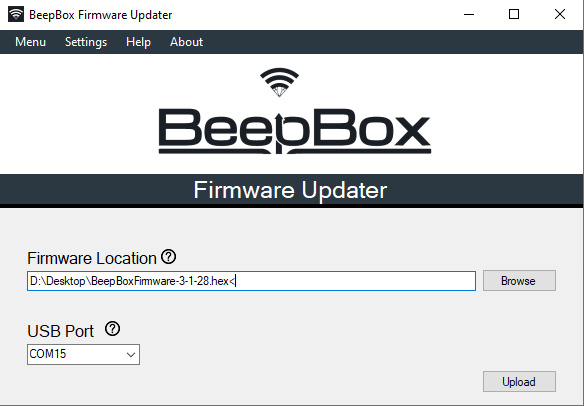
With your BeepBox turned on, and both your firmware file and USB port selected, click on Upload. Whilst the software uploads the new firmware to your BeepBox, it is important to make sure that the connection is not broken, so don't unplug or turn off the BeepBox.
After clicking the Upload button, the blue light on the BeepBox will flash once to indicate that it has restarted and is accepting instructions from your computer. A progress bar will open in the software window to show the progress of the update.
It will take a couple of minutes to perform the update so please be patient. When it's finished, a message will appear, the progress bar will reach 100%, and your BeepBox will automatically reset. Congratulations, you have updated your BeepBox with the latest firmware.
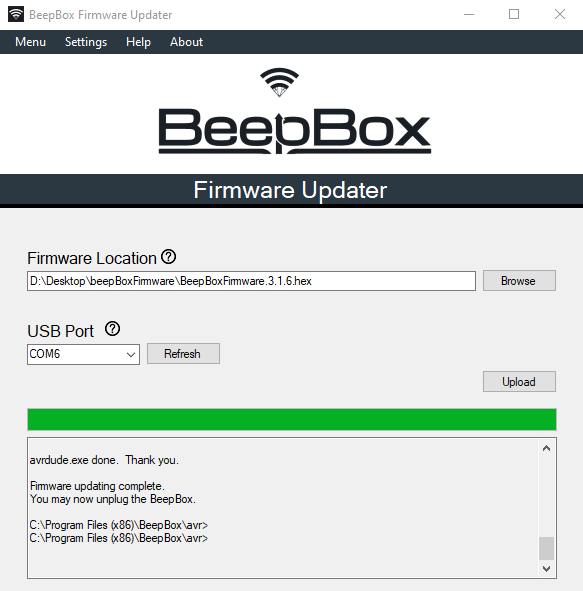
If anything goes wrong during this process, please see the Help files in the software.
Firmware Cable
If you do not already have one, then you will need to purchase a cable in our Store. This is a propriety cable designed specifically to work with the BeepBox.
WARNING: Using a cable which doesn't match the internal wiring of the BeepBox can cause permanent damage. We will not replace items which have been damaged by using a third party cable. To avoid damaging your BeepBox, please purchase the correct cable from the store.
